Defining Rule Conditions
Conditions determine when a rule triggers. They answer the question: "Under what circumstances should this field behavior apply?"
Dynamic Screen Rules supports four types of conditions that can be combined for sophisticated control:
- Field Value Conditions - Based on values in fields (including Issue Type)
- User Group Conditions - Based on user's group membership
- User Role Conditions - Based on user's project role
- User Permission Conditions - Based on user's Jira permissions
Understanding how to configure each condition type gives you precise control over when rules execute.
How Conditions Work
Basic principle: Rules evaluate their conditions continuously. When ALL conditions are satisfied, the action applies to the target field.
Condition logic:
- Multiple conditions of the same type use OR logic (ANY condition triggers the rule)
- Different condition types use AND logic (ALL types must be satisfied)
Example:
Field value: Priority = High OR Priority = Critical
Field value: Issue Type = Bug
User group: User in group "Developers"

Result: Rule triggers when (Priority is High OR Critical)
        AND Issue Type is Bug
        AND User is in Developers group
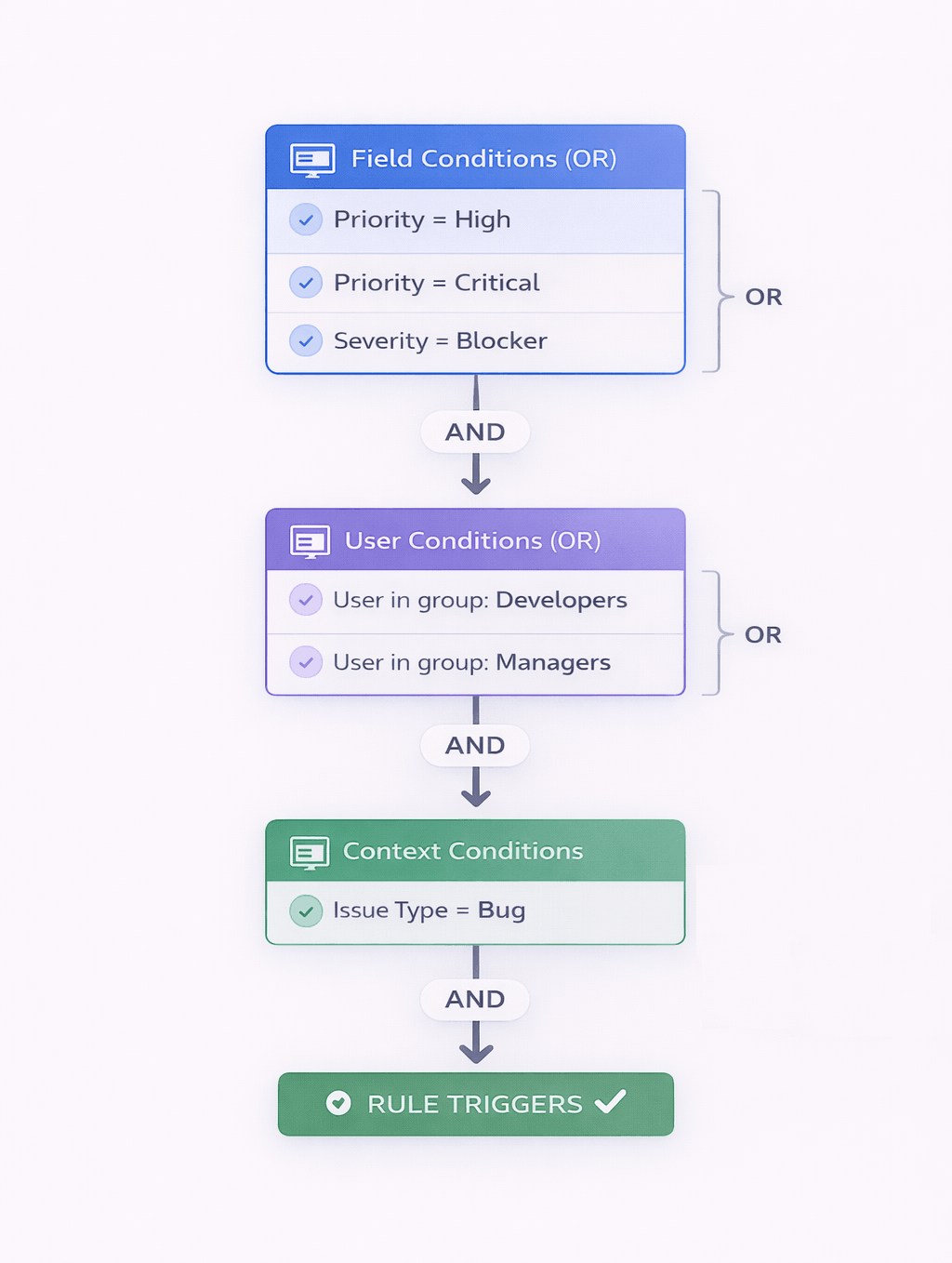
How multiple conditions combine: OR within type, AND between types
Not all rules need all condition types. You can use just field value conditions, just user conditions, or any combination. Add only the conditions that match your business requirements.
Field Value Conditions
Field value conditions trigger rules based on values in fields (including standard fields, custom fields, and Issue Type).
When to Use
Use field-based conditions when field behavior should change based on user input.
Common scenarios:
- Show additional fields when a specific option is selected
- Require documentation when a value exceeds a threshold
- Lock fields when a checkbox is checked
- Change labels based on another field's value
Configuring Field-Based Conditions
Steps:
- In the rule form, find the Conditions section
- Click + Add Condition
- Select Field-Based Condition
- Configure the condition:
- Field: Select which field to evaluate
- Operator: Choose comparison operator (equals, contains, greater than, etc.)
- Value: Enter or select the value to compare against
Example Configuration
Requirement: "Show 'Root Cause' field when Priority is High or Critical"
Configuration:
Condition 1:
- Field: Priority
- Operator: Equals
- Value: High
Condition 2:
- Field: Priority
- Operator: Equals
- Value: Critical
Result: Rule triggers when Priority = High OR Priority = Critical.
Supported Operators
The available operators depend on the field type you're evaluating.
Text Fields (Summary, Description, Text Field)
Equals
- Exact match (case-sensitive)
- Example: Summary equals "Production Issue"
Not equals
- Value does NOT match exactly
- Example: Summary not equals "Test"
Contains
- Field value includes the text (case-insensitive)
- Example: Description contains "urgent"
Does not contain
- Field value does NOT include the text
- Example: Summary does not contain "draft"
Is empty
- Field has no value (blank)
- Example: Description is empty
Is not empty
- Field has any value
- Example: Summary is not empty
Select Fields (Priority, Status, Single Select)
Equals
- Value matches exactly
- Example: Priority equals High
Not equals
- Value does NOT match
- Example: Priority not equals Low
Is empty
- No option selected
- Example: Component is empty
Is not empty
- Any option selected
- Example: Priority is not empty
In list
- Value is one of multiple options
- Example: Priority in [High, Critical]
Multi-Select Fields (Components, Labels, Multi-Select)
Contains
- At least one selected value matches
- Example: Components contains "Backend"
Does not contain
- No selected values match
- Example: Labels does not contain "archived"
Is empty
- No options selected
- Example: Components is empty
Is not empty
- At least one option selected
- Example: Labels is not empty
Number Fields (Story Points, Custom Number Fields)
Equals
- Exact numeric match
- Example: Story Points equals 5
Not equals
- Does NOT match exactly
- Example: Story Points not equals 0
Greater than
- Value is greater than threshold
- Example: Estimated Cost greater than 10000
Less than
- Value is less than threshold
- Example: Story Points less than 3
Greater than or equal
- Value is greater than or equal to threshold
- Example: Story Points greater than or equal 8
Less than or equal
- Value is less than or equal to threshold
- Example: Story Points less than or equal 2
Is empty
- No value entered
- Example: Story Points is empty
Is not empty
- Any value entered
- Example: Story Points is not empty
Date Fields (Due Date, Custom Date Fields)
Equals
- Exact date match
- Example: Due Date equals 2026-03-01
Not equals
- Does NOT match date exactly
- Example: Due Date not equals today
Greater than (after)
- Date is after the specified date
- Example: Due Date greater than today
Less than (before)
- Date is before the specified date
- Example: Start Date less than 2026-12-31
Is empty
- No date selected
- Example: Due Date is empty
Is not empty
- Any date selected
- Example: Due Date is not empty
Checkbox Fields
Equals
- Checked or unchecked
- Example: Approved equals Checked
Is empty
- Not set (neither checked nor unchecked)
- Example: Confirmed is empty
Is not empty
- Set to either checked or unchecked
- Example: Approved is not empty
User Picker Fields (Assignee, Reporter, User Picker)
Equals
- Specific user selected
- Example: Assignee equals "John Smith"
Not equals
- NOT a specific user
- Example: Assignee not equals "Unassigned"
Is empty
- No user selected
- Example: Assignee is empty
Is not empty
- Any user selected
- Example: Assignee is not empty
Is current user
- Selected user is the person filling the form
- Example: Assignee is current user
Is not current user
- Selected user is NOT the person filling the form
- Example: Assignee is not current user
Multiple Field Conditions (OR Logic)
You can add multiple field-based conditions to the same rule. They use OR logic.
Example:
Condition 1: Priority = High
Condition 2: Priority = Critical
Condition 3: Severity = Blocker

Result: Rule triggers when Priority = High
        OR Priority = Critical
        OR Severity = Blocker
Why OR logic? This lets you trigger rules for multiple values without complex configuration. "Show field for High OR Critical" is simpler than trying to express this with AND logic.
Want AND logic between field conditions? Use a single condition with appropriate operators. For example, to require BOTH "Component = Backend" AND "Priority = High," create two separate rules or use context conditions to narrow the scope.
Practical Examples
Example 1: Progressive disclosure
Show "Please Explain" field when Satisfaction = Dissatisfied
Configuration:
- Field: Satisfaction
- Operator: Equals
- Value: Dissatisfied
Example 2: Conditional validation
Require "Business Justification" when Estimated Cost > $10,000
Configuration:
- Field: Estimated Cost
- Operator: Greater than
- Value: 10000
Example 3: Multi-value trigger
Show "Escalation Contact" when Priority = Critical OR Severity = Blocker
Configuration:
- Condition 1: Priority equals Critical
- Condition 2: Severity equals Blocker
Example 4: Empty value check
Show "Assignee Required" message when Assignee is empty
Configuration:
- Field: Assignee
- Operator: Is empty
Issue Type as a Field Value: Issue Type is treated as a field value condition. You can configure it in the Scope section of the rule form to filter which issue types the rule applies to.
User Group Conditions
User group conditions trigger rules based on the user's Jira group membership.
When to Use
Use group conditions when field behavior should vary by team or organizational role.
What it does: Limits the rule to users in specific Jira groups.
When to use:
- Organization-wide roles (Finance, HR, Leadership)
- Department-specific fields
- Security and compliance requirements
Configuration:
- Find User Conditions section in rule form
- Select Group Membership filter
- Choose one or more groups
Example:
Show "Budget" field only to users in Finance group

Configuration:
- User in group: Finance
Result: Only Finance group members see the Budget field. Other users see the form without this field.
Multiple groups: Select multiple groups - rule applies to users in ANY of the groups (OR logic).
User Role Conditions
User role conditions trigger rules based on the user's project role.
When to Use
Use role conditions when field behavior should vary by project-specific responsibility.
Configuration:
- Find User Conditions section
- Select Project Role filter
- Choose one or more roles
Example: Allow "Release Date Override" only for Release Managers
Multiple roles: Select multiple roles - rule applies to users with ANY of the roles (OR logic).
User Permission Conditions
User permission conditions trigger rules based on Jira permissions.
When to Use
Use permission conditions for fine-grained access control based on what users are allowed to do.
Configuration:
- Find User Conditions section
- Select Permission filter
- Choose one or more permissions
Example: Show system configuration fields only to users with "Administer Project" permission
Common permissions: Edit Issues, Delete Issues, Assign Issues, Create Issues, Administer Project
Combining Conditions (AND/OR Logic)
The power of Dynamic Screen Rules comes from combining multiple condition types to create sophisticated rules.
Understanding Condition Logic
Within the same condition type: OR logic
- Multiple field value conditions: ANY condition triggers (OR)
- Multiple groups: User in ANY group triggers (OR)
- Multiple roles: User has ANY role triggers (OR)
Between different condition types: AND logic
- Field value AND User group AND User role AND User permission
- ALL types must be satisfied
Logic Summary
Field Value 1 OR Field Value 2
  AND
User Group 1 OR User Group 2
  AND
User Role 1 OR User Role 2
  AND
User Permission
Example: Simple Combination
Requirement: "Show 'Root Cause' field for high-priority Bugs"
Configuration:
- Field value: Priority = High OR Priority = Critical
- Scope: Issue Type = Bug
Result: Rule triggers when Priority is High or Critical AND Issue Type is Bug.
Example: Advanced Combination
Requirement: "For critical production incidents, require executive contact - but only show to the on-call team."
Configuration:
- Field value: Priority = Critical AND Component contains "Production"
- Scope: Issue Type = Incident
- User group: User in "On-Call Team"
- Action: Show and require "Executive Contact" field
Result: Rule triggers when Priority is Critical AND Component contains Production AND Issue Type is Incident AND User is in On-Call Team.
Common Combination Patterns
Pattern 1: Field + Issue Type
Show field X when field Y = value AND issue type = type

Example: Show "Steps to Reproduce" when Severity = High AND Issue Type = Bug
Pattern 2: Status + Role
Lock field X when status = value AND user role = role

Example: Lock "Resolution" when Status = Closed AND user role != Administrator
Pattern 3: Field + Context + User
Show field X when field Y = value AND issue type = type AND user in group = group

Example: Show "Budget" when Cost > $10,000 AND Issue Type = Purchase Request AND user in Finance group
Pattern 4: Multiple fields + Status
Require field X when (field Y = value OR field Z = value) AND status = value

Example: Require "Approval" when (Cost > $5,000 OR Risk = High) AND Status = Pending Approval
Troubleshooting Combined Conditions
Rule not triggering?
Check each condition type independently:
- Are field conditions met? (Check field values)
- Does context match? (Check project, issue type, status)
- Does user match? (Check group, role, permissions)
Rule must satisfy ALL condition types. If any type fails, the rule doesn't trigger.
Rule triggering too often?
You may have too few conditions. Add context or user conditions to narrow the scope.
Rule triggering too rarely?
You may have too many conditions. Remove unnecessary conditions to broaden the scope.
Best Practices for Defining Conditions
1. Start simple, add complexity as needed
Begin with a single condition and verify it works. Add more conditions only if the simple rule doesn't meet requirements.
2. Use the most specific condition type
- If behavior varies by field value → Use field-based
- If behavior varies by issue type/status → Use context-based
- If behavior varies by user role → Use user-based
3. Test with real users
Conditions involving user groups or roles behave differently for different users. Test with accounts that have the appropriate group memberships or roles.
4. Document complex conditions
For rules with multiple conditions, note the business requirement in your rule management documentation. Future maintainers will thank you.
5. Avoid over-conditioning
Too many conditions make rules fragile. If conditions change frequently, consider simplifying or splitting into multiple rules.
Next Steps
Now that you understand conditions:
Learn about actions:
- Defining Actions - What rules can do to fields when conditions are met
See conditions in practical examples:
- Progressive Disclosure - Field-based condition examples
- Field Locking on Transitions - Transition-based condition examples
- Dynamic Required Fields - Combined condition examples
Explore advanced concepts:
- Using Smart Values - Computed values and expressions in conditions
Manage your rules:
- Managing Rules - Organize, enable, disable, and edit rules
Ready to learn what rules can do? Continue to Defining Actions.